To replay a song on Apple Music, open the Now Playing screen, tap the queue icon, then tap the Repeat button until it shows a small “1.” That means the current song will loop again and again until you turn it off. Apple Music now offers access to more than 100 million songs, so repeat mode is easy to miss inside all those screens and menus [source: Apple].
TLDR: On iPhone, play a song, open Now Playing, tap the queue icon, then tap Repeat until you see Repeat 1. For example, if you want to practice a 3-minute song 10 times, Repeat 1 gives you 30 minutes of hands-free listening. On Mac, Windows, and the web player, look for the Repeat icon near the playback controls or queue area. If the song keeps looping later, tap the same icon until repeat is off.
How Repeat Works in Apple Music
Apple Music has two repeat modes, and this is where people often get tripped up.
- Repeat All: Replays the whole album, playlist, or queue.
- Repeat One: Replays only the current song.
- Repeat Off: Stops looping after the song, album, or playlist ends.
The icon looks like two arrows forming a loop. When you tap it once, Apple Music usually turns on Repeat All. Tap it again and you should see a small “1” on the repeat icon. That is the setting you want for replaying one song.
The catch is that Apple hides the button in slightly different spots depending on your device. It drives me a little crazy because a task this simple can take 10 extra seconds if you do not know where to look.
How to Replay a Song on iPhone or iPad
Most Apple Music users will do this on an iPhone. The steps are quick once you know where the button lives.
- Open the Apple Music app.
- Play the song you want to replay.
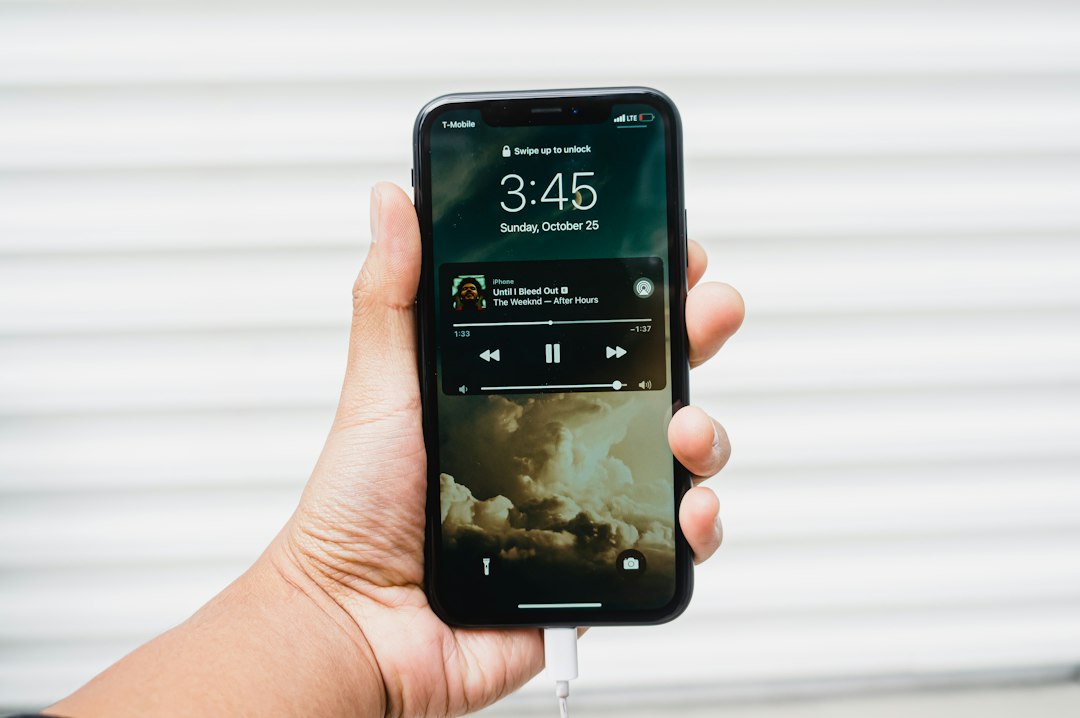
- Tap the mini player at the bottom of the screen to open Now Playing.
- Tap the Playing Next icon. It looks like three lines with dots.
- Tap the Repeat icon.
- Tap it again until you see a small 1 on the icon.
Now the song will keep playing on repeat. You can lock your phone, open another app, or put in earbuds. Apple Music will keep looping that same track.
To stop it, go back to the same screen and tap the Repeat icon until it is no longer highlighted.
How to Replay a Song on Mac
On a Mac, the Music app gives you a more traditional control layout. That makes repeat easier to spot.
- Open the Music app.
- Start playing the song.
- Look near the playback controls at the top of the window.
- Click the Repeat icon once for Repeat All.
- Click it again until a small 1 appears.
If you do not see the icon right away, open the queue or make the Music window wider. Sometimes the interface hides controls when the window is too small. Not ideal, but it happens.
How to Replay a Song on Windows
If you use Apple Music on Windows, the steps may depend on whether you are using the newer Apple Music app or iTunes. In both cases, the idea is the same.
- Play your song.
- Find the Repeat icon near the playback controls.
- Click it until the 1 appears.
In iTunes, the Repeat button may sit near the top of the window. In the newer Apple Music app, it may appear closer to the queue or playback bar. If Repeat All turns on first, click again. You want Repeat One, not just repeat.
How to Replay Songs on Apple Music Web
You can also loop music at music.apple.com. This is handy at work, on a shared computer, or on a device where the app is not installed.
- Go to music.apple.com and sign in.
- Play the song you want.
- Open the queue if needed.
- Click the Repeat icon until it shows 1.
The web player can feel slower than the app. Expect a small delay when opening the queue, especially in a busy browser with too many tabs open.
Can Siri Replay a Song?
Yes. Siri can help, and it is the fastest option when your hands are busy.
Try saying:
- “Hey Siri, repeat this song.”
- “Hey Siri, play this song again.”
- “Hey Siri, turn on repeat.”
Siri does not always pick the exact repeat mode you want. If it starts repeating a playlist instead of one track, open Apple Music and check the Repeat icon. You need the small 1.
Replay a Song Without Turning on Repeat
If you only want to hear a song one more time, you do not need repeat mode. Just use one of these options:
- Tap the Back button after the song starts.
- Drag the progress bar back to the beginning.
- Ask Siri to “play that again.”
- Add the song twice to a playlist or queue.
This is better for casual listening. Repeat One is best for workouts, language practice, music rehearsal, sleep sounds, or when one chorus has taken over your brain.
Why Your Song Keeps Replaying
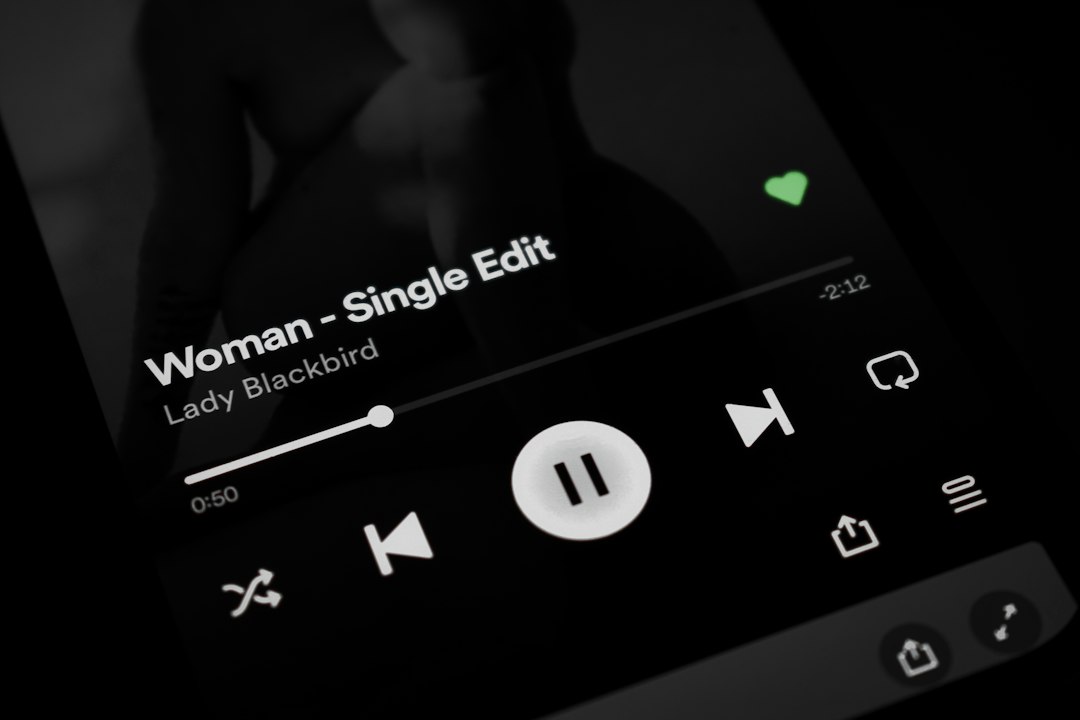
If Apple Music keeps playing the same song, Repeat One is probably still on. Open the Now Playing screen and check the Repeat icon. If it has a small 1, tap it until the icon is no longer active.
Also check whether the song appears more than once in your queue. This can happen if you added it manually several times. Clear the queue if needed, then start fresh.
Quick Tips for Better Replays
- Use Repeat One for a single track.
- Use Repeat All for albums, playlists, and study mixes.
- Turn off Shuffle if the wrong song keeps coming up next.
- Download the song if your connection is weak.
- Check the queue when Apple Music acts weird.
Once you know the Repeat icon trick, replaying songs on Apple Music is simple. The key is that tiny 1. If you see it, your current song is locked in and ready to loop as many times as you can stand.