Yellow spots on a MacBook display can be distracting, especially when they appear over white backgrounds, documents, design apps, or video content. The issue may look minor at first, but it often points to pressure damage, heat exposure, adhesive problems, coating deterioration, or backlight irregularities. For MacBook owners, choosing the right repair option depends on the model, warranty status, severity of the discoloration, and budget.
TLDR: Yellow spots on a MacBook display are usually caused by panel pressure, heat, liquid exposure, adhesive aging, or backlight defects. The best repair option is typically an Apple-authorized display replacement, but independent repair shops and DIY part replacement may be suitable in some cases. MacBook owners should first confirm whether the issue is hardware-related, check warranty or AppleCare coverage, and compare repair costs before deciding.
Understanding Yellow Spot Issues on a MacBook Display
A yellow spot is a visible area of discoloration that may appear as a warm patch, stain, cloud, or irregular mark on the MacBook screen. It is most noticeable on white, gray, or light-colored backgrounds. In many cases, the spot does not move, does not change with software adjustments, and remains visible after restarting the device.
The yellowing may appear in one corner, near the center, along the edges, or in multiple places across the screen. On Retina displays, it can be especially frustrating because the rest of the panel may look sharp and color-accurate while the discolored patch stands out clearly.
Common causes include:
- Pressure damage: Objects placed between the keyboard and screen, tight bags, or pressure on the lid can damage the LCD layers.
- Heat exposure: Prolonged exposure to high temperatures may affect adhesive layers or display materials.
- Liquid contact: Even minor moisture exposure can cause stains, discoloration, or backlight diffusion issues.
- Panel aging: Older displays may develop uneven color temperature or backlight wear.
- Manufacturing defects: Some panels may develop discoloration because of bonding, lamination, or backlight irregularities.
- Coating deterioration: Damage to the display coating may create uneven patches, although this often looks different from internal yellowing.
First Step: Confirm Whether It Is a Hardware Problem
Before selecting a repair option, a MacBook owner should determine whether the yellow spot is caused by the display hardware or by software settings. While most permanent yellow spots are hardware-related, several software features can make the screen appear warmer than expected.
Important checks include:
- Disable Night Shift: Night Shift changes the color temperature and can make the entire display look yellow.
- Turn off True Tone: True Tone adjusts color based on ambient light and may create a warmer appearance.
- Check color profiles: A custom or incorrect display profile can affect color tone.
- Restart the MacBook: A restart can rule out temporary graphics or display calibration glitches.
- Test with a plain white image: A white screen makes yellow patches easier to identify.
- Connect an external monitor: If the external screen looks normal, the MacBook’s built-in display is likely the problem.
If the yellow spot remains in the same place regardless of settings, apps, or brightness levels, it is usually a physical display defect. At that point, repair or replacement becomes the most realistic solution.
Option 1: Apple Store or Apple Authorized Service Provider
The most reliable repair option is usually an Apple Store or an Apple Authorized Service Provider. These providers use genuine Apple parts, follow approved repair procedures, and can check whether the MacBook qualifies for warranty, AppleCare, or a known service program.
This option is especially recommended for newer MacBook Air and MacBook Pro models because modern displays are thin, laminated, and tightly integrated with the lid assembly. In many cases, Apple does not replace only the LCD panel; instead, the complete display assembly is replaced. This includes the screen, aluminum lid, webcam area, cables, and related components.
Advantages of Apple-authorized repair:
- Genuine replacement parts
- Professional diagnostics
- Warranty protection on the repair
- Lower risk of additional damage
- Best option for AppleCare-covered devices
Disadvantages:
- Higher out-of-warranty cost
- Possible appointment or shipping delays
- Limited flexibility for partial repairs
For MacBooks still under the one-year limited warranty or AppleCare+, this should usually be the first option. If the yellow spot is considered a manufacturing defect and there is no accidental damage, the repair may be covered. If pressure or liquid damage is found, AppleCare+ may reduce the cost, but a service fee may apply.
Option 2: Independent MacBook Repair Shops
Independent repair shops can be a practical alternative, especially for MacBooks that are out of warranty. Many specialized shops repair MacBook displays every day and may offer lower prices than Apple. Some may install full display assemblies, while others may provide refurbished or aftermarket parts.
A reputable independent shop should be transparent about the part being used. MacBook owners should ask whether the replacement is genuine Apple pulled, refurbished original, or aftermarket. The quality of the replacement display can vary significantly. A poor-quality panel may have weaker brightness, inaccurate colors, uneven backlighting, or reduced durability.
Independent repair may be a good choice when:
- The MacBook is no longer covered by warranty or AppleCare.
- Apple’s repair estimate is too expensive compared with the device’s value.
- The owner needs faster local service.
- The shop has strong reviews and Mac-specific experience.
However, care is important. A low quote may not include labor, calibration, warranty, or high-quality parts. The safest independent repair option is a technician who specializes in Apple laptops and provides a written warranty on both labor and parts.

Option 3: DIY Display Replacement
Some experienced MacBook owners may consider a DIY display replacement. This approach can reduce labor costs, but it carries the highest risk. MacBook displays are delicate, and many models require careful handling of small screws, display cables, hinges, antennas, and adhesive areas.
DIY repair is usually not recommended for beginners. A mistake can damage the logic board, camera cable, Wi-Fi antennas, hinge covers, or new display assembly. In addition, replacement parts can be expensive, and many sellers do not accept returns if the part has been installed incorrectly.
DIY repair may only make sense if:
- The owner has prior electronics repair experience.
- The correct tools are available.
- The MacBook is already out of warranty.
- The owner accepts the risk of damaging the device.
- A reliable replacement part has been sourced.
For most users, DIY is best reserved for older MacBook models where the repair cost may otherwise exceed the value of the machine. Even then, it is important to follow a model-specific repair guide and disconnect the battery before working near display connectors.
Option 4: External Monitor as a Temporary Workaround
If the yellow spot does not affect performance and the owner needs more time to decide, using an external monitor can be a practical short-term solution. This does not repair the built-in display, but it allows the MacBook to remain usable for work, school, editing, or browsing.
An external display is especially helpful when the yellow spot interferes with color-sensitive work such as photo editing, design, or video production. A good external monitor can provide accurate color while the internal screen remains unchanged.
This option is best viewed as a temporary workaround or a cost-saving solution for a MacBook used mostly at a desk. It is less convenient for anyone who travels frequently or relies on the built-in display every day.
Option 5: Trade-In, Sale, or Replacement
In some cases, repairing the display may not be the most economical choice. If the MacBook is older, has battery wear, keyboard problems, limited storage, or other issues, a display replacement may cost too much compared with the value of the machine.
MacBook owners should compare:
- The repair estimate
- The current resale value of the MacBook
- The cost of a replacement MacBook
- The expected remaining lifespan of the device
- Other repairs that may be needed soon
If the display repair costs a large percentage of the MacBook’s value, trading it in or selling it with the defect disclosed may be smarter. A newer MacBook may offer better battery life, longer software support, faster performance, and a fresh warranty.
How Much Does Yellow Spot Display Repair Cost?
Repair cost depends on the MacBook model, screen size, part availability, and repair provider. Newer MacBook Pro models with Liquid Retina or mini-LED displays can be significantly more expensive to repair than older MacBook Air models. Full display assembly replacements often cost more than simple panel repairs because the entire lid section is replaced.
In general, Apple-authorized repairs are often the most expensive out of warranty, but they provide the highest confidence in part quality. Independent shops may be cheaper, though part quality and warranty terms vary. DIY can appear cheaper, but the cost can rise quickly if the replacement part fails or another component is damaged during installation.
The best value is not always the lowest price. A high-quality repair should restore brightness, color accuracy, webcam alignment, lid movement, and long-term reliability.
How to Prevent Yellow Spots in the Future
Although not every display defect can be prevented, careful handling can reduce the risk of yellow spots and pressure damage. MacBook displays are thin and sensitive, so small habits matter.
- Never close the lid with pens, papers, earbuds, or debris on the keyboard.
- Avoid carrying the MacBook in an overpacked bag.
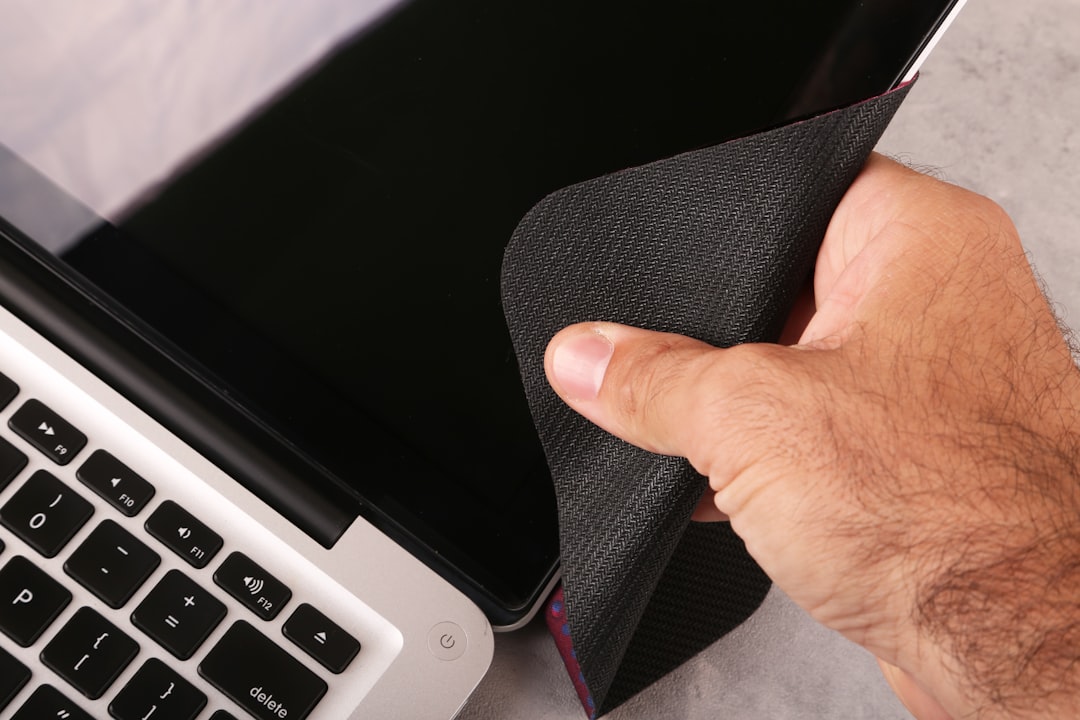
- Use a padded laptop sleeve during travel.
- Keep the MacBook away from excessive heat, direct sunlight, and hot cars.
- Clean the screen with a soft microfiber cloth and appropriate technique.
- Avoid spraying liquid directly on the display.
- Do not press hard on the screen while cleaning.
Best Overall Repair Choice
For most MacBook owners, the best repair option for yellow spot issues is an Apple Store or Apple Authorized Service Provider, especially if the device is still covered by warranty or AppleCare+. This route provides the strongest assurance of genuine parts and proper service.
For older out-of-warranty devices, a trusted independent MacBook repair shop may offer the best balance of cost and quality. DIY repair should be considered only by experienced individuals with the correct tools and a willingness to accept risk. If the MacBook is aging or the repair cost is too high, replacement may be the more practical long-term decision.
FAQ
What causes yellow spots on a MacBook display?
Yellow spots are usually caused by pressure damage, heat exposure, liquid contact, adhesive aging, backlight defects, or internal panel problems. If the spot stays in the same place on every screen, it is likely a hardware issue.
Can a yellow spot on a MacBook screen be fixed without replacing the display?
In most cases, no. If the yellow spot is caused by internal display damage, cleaning or software changes will not remove it. A display assembly replacement is usually required.
Does AppleCare cover yellow spots on a MacBook?
AppleCare may cover the issue if it is determined to be a defect and not accidental damage. If pressure or liquid damage is found, AppleCare+ may still reduce the repair cost, but a service fee may apply.
Can Night Shift or True Tone cause yellow spots?
Night Shift and True Tone can make the entire display appear warmer, but they do not usually create fixed yellow patches. Turning them off is a useful first troubleshooting step.
Is it safe to use a MacBook with a yellow spot on the screen?
It is generally safe if the rest of the MacBook works normally and there are no signs of liquid damage, flickering, or overheating. However, the spot may worsen over time if the panel is physically damaged.
Should an owner repair or replace an older MacBook with yellow spots?
If the repair cost is high compared with the MacBook’s resale value, replacement may be the better choice. For newer or high-performance models, display repair is often worthwhile.