Over time, an iPad may begin to feel slower, show reduced storage space, or display app glitches because cached files have accumulated in the background. App cache is usually harmless, but it can grow large when apps store images, videos, web data, previews, offline files, and temporary system information. Since iPadOS does not offer one universal “clear all app cache” button, the best approach is to use several safe methods that remove temporary data without deleting the apps themselves.
TLDR: Clearing app cache on an iPad without deleting apps usually involves using in-app settings, clearing Safari website data, removing offline downloads, restarting the device, and managing storage-heavy content. iPadOS does not provide a single cache-clearing tool for every app, so each app may need to be handled separately. The safest methods preserve app installation and account data while freeing space and improving performance.
Why App Cache Builds Up on an iPad
App cache exists to make apps faster. A social media app may store viewed photos and videos, a browser may save website assets, and a streaming app may keep thumbnails or temporary playback files. This allows content to load quickly the next time the same screen or website is opened.
However, cache can become a problem when it is no longer useful. Large media previews, old web files, outdated temporary downloads, and corrupted cached data may take up storage or cause apps to behave strangely. On an iPad with limited storage, even a few gigabytes of cache can affect updates, downloads, and general responsiveness.
The key limitation is important: iPadOS does not let a person clear cache for every installed app from one central button. Instead, the available options depend on the app, the type of cache, and Apple’s storage controls.
Check iPad Storage First
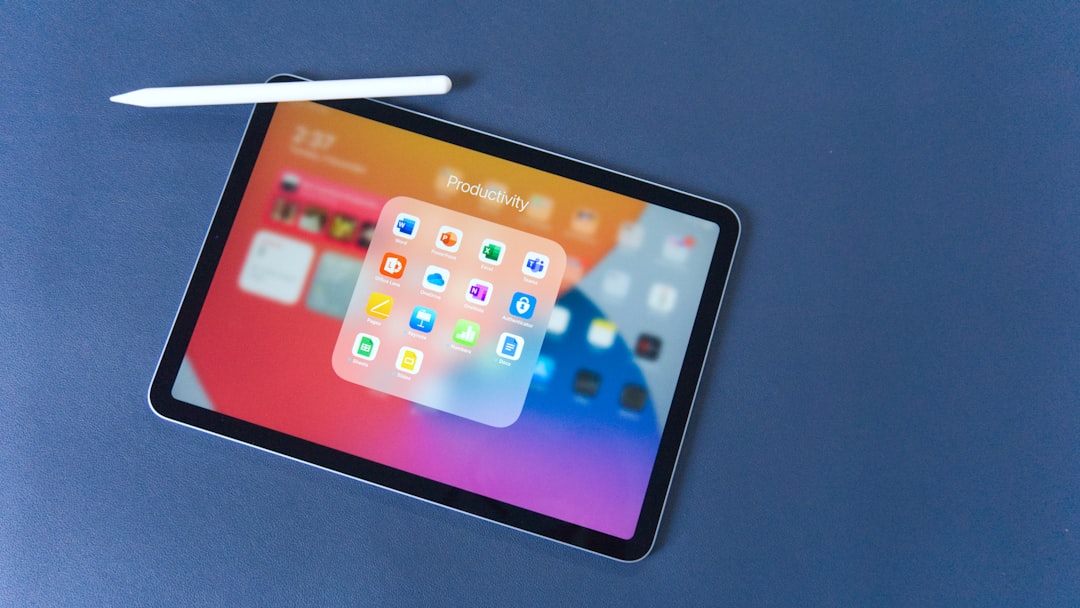
Before clearing anything, it helps to see which apps are using the most space. This gives a clearer idea of where cached files or downloaded content may be hiding.
- Open Settings.
- Tap General.
- Select iPad Storage.
- Wait for the storage list to load.
- Review the apps using the largest amount of space.
The iPad Storage screen shows how much space each app occupies, but it does not always separate the app itself from documents, data, downloads, and cache in a detailed way. Still, it is the best starting point for identifying apps that need attention.
Clear Cache Inside Individual Apps
Many popular apps include their own cache-clearing controls. These settings are often found under sections such as Storage, Privacy, Data Usage, Downloads, or Account Settings.
For example, media, messaging, cloud storage, map, and social apps may allow cached images, search history, temporary files, or downloaded content to be removed without deleting the app. The exact wording varies, but common options include:
- Clear Cache
- Clear Browsing Data
- Remove Downloads
- Delete Temporary Files
- Clear Media Cache
This is usually the safest method because it is designed by the app developer. It keeps the app installed and normally preserves the account login, preferences, and important saved content.
Clear Safari Cache and Website Data
Safari cache can grow significantly, especially when many websites are visited regularly. Clearing Safari website data can free storage and fix website loading problems.
- Open Settings.
- Scroll down and tap Safari.
- Tap Clear History and Website Data.
- Confirm the action.
This removes browsing history, cookies, and cached website files from Safari. It may also sign the user out of some websites. If a more selective option is preferred, Safari offers advanced website data controls:
- Go to Settings > Safari.
- Tap Advanced.
- Select Website Data.
- Remove data for individual websites or clear all website data.
This method affects Safari only. It does not clear cache from Chrome, Firefox, or apps with built-in browsers. Those apps usually have their own privacy or browsing data settings.
Remove Offline Downloads From Streaming Apps
Streaming and reading apps often store offline files that are mistaken for cache. Movies, shows, music, podcasts, audiobooks, magazines, and maps can consume far more space than temporary cache files.
Apps such as video platforms, music services, podcast players, offline map apps, and ebook readers frequently include a Downloads section. Removing downloaded items can free a large amount of storage while keeping the app installed.
- Open the app using the most storage.
- Look for Downloads, Library, or Offline Content.
- Delete saved episodes, videos, songs, or maps that are no longer needed.
- Check whether the app has an option to automatically remove watched or old downloads.
This approach is especially useful because offline files are usually easy to download again later if needed.
Restart the iPad to Clear Temporary System Files
A restart will not erase a large app cache, but it can clear temporary memory, refresh background processes, and resolve minor app issues. It is a simple step that helps when apps lag, freeze, or show outdated information.
To restart an iPad, the user can hold the appropriate power and volume buttons, slide to power off, wait briefly, and turn the device back on. For iPads with a Home button, the top button is typically used. After restarting, the system may feel smoother because temporary processes have been reset.
Update Apps and iPadOS
Some cache problems are caused by bugs. An app may fail to remove temporary files properly, or it may store duplicated data until an update fixes the issue. Keeping apps updated can improve storage management and performance.
- Open the App Store.
- Tap the profile icon.
- Scroll to available updates.
- Update storage-heavy or frequently used apps.
Updating iPadOS can also help, because Apple regularly improves system performance and storage handling. This can be checked under Settings > General > Software Update.
Use “Offload App” With Caution
The Offload App feature is sometimes recommended for clearing app space, but it deserves careful explanation. Offloading removes the app itself while keeping its documents and data. The app icon remains on the Home Screen with a download symbol, and the app can be reinstalled later.
For someone who wants to keep every app fully installed, offloading may not be the right choice. It does not delete personal app data, but it does temporarily remove the app program. Therefore, it is better viewed as a storage-saving option rather than a true cache-clearing method.
Clear Cache in Third-Party Browsers
Browsers such as Chrome, Firefox, and Edge store their own cache separately from Safari. Their data must be cleared inside each browser app. The settings usually appear under Privacy, History, or Browsing Data.
When clearing browser data, the user can often choose which items to remove. Selecting cached images and files is usually enough for cache cleanup, while clearing cookies may sign the user out of websites.
Reduce Future Cache Buildup
Cache cannot be eliminated completely, but it can be managed. A few habits can keep storage under control:
- Remove offline downloads regularly from video, music, and podcast apps.
- Clear browser cache occasionally, especially if websites load incorrectly.
- Check iPad Storage monthly to find apps growing unusually large.
- Use cloud streaming instead of downloads when reliable internet is available.
- Update apps so storage bugs are less likely to persist.
In most cases, cache cleanup does not need to be done daily. It is most useful when storage is almost full, an app is behaving oddly, or the iPad has not been maintained for a long time.
FAQ
Can app cache be cleared on an iPad without deleting apps?
Yes, but it depends on the app. Many apps include built-in options to clear cache, remove downloads, or delete temporary data while keeping the app installed.
Does iPadOS have a clear all cache button?
No. iPadOS does not provide a universal button for clearing cache from every app. Cache must usually be managed through individual app settings, browser settings, and storage controls.
Will clearing Safari cache delete bookmarks?
No. Clearing Safari history and website data does not normally delete bookmarks or Reading List items. However, it may remove cookies and sign the user out of websites.
Is offloading an app the same as deleting it?
Not exactly. Offloading removes the app program but keeps its documents and data. The app can be reinstalled later, but it is not the same as clearing cache while keeping the app fully available.
How often should app cache be cleared on an iPad?
There is no fixed schedule. Cache should be cleared when storage is low, an app is malfunctioning, websites are loading incorrectly, or downloaded media is no longer needed.