Start by identifying where the McAfee pop-up comes from. Do not uninstall anything yet. Many “McAfee” alerts are not from McAfee at all; they are browser notifications, scareware ads, or expired trial reminders. Windows also lets you control app notifications by sender, which is often the fastest fix [source: Microsoft].
TLDR: If McAfee is installed and you trust it, first turn off marketing and notification settings inside McAfee and Windows. If the pop-ups appear in Chrome, Edge, or Firefox, remove the website permission; for example, one bad site can send 10 or more fake “virus” alerts per day. If McAfee was bundled with your PC and keeps pushing renewals, uninstalling it may be cleaner. If you still want paid protection, switch only after checking that the new tool has real-time protection, phishing protection, and low system impact.
First, check whether the pop-up is real
A real McAfee alert usually opens the McAfee app and refers to your device, subscription, scan, or firewall. A fake one often appears inside a browser tab or as a notification from a random site. It may say things like “Your PC is infected” or “McAfee has found 5 viruses” even when McAfee is not installed.
Honestly, it feels like every shady download site has learned to dress up as antivirus software. That is why the source matters more than the logo.
- Real app pop-up: Comes from McAfee installed on your PC.
- Browser notification: Comes from Chrome, Edge, Firefox, or another browser.
- Web ad or scam page: Appears only while visiting a site.
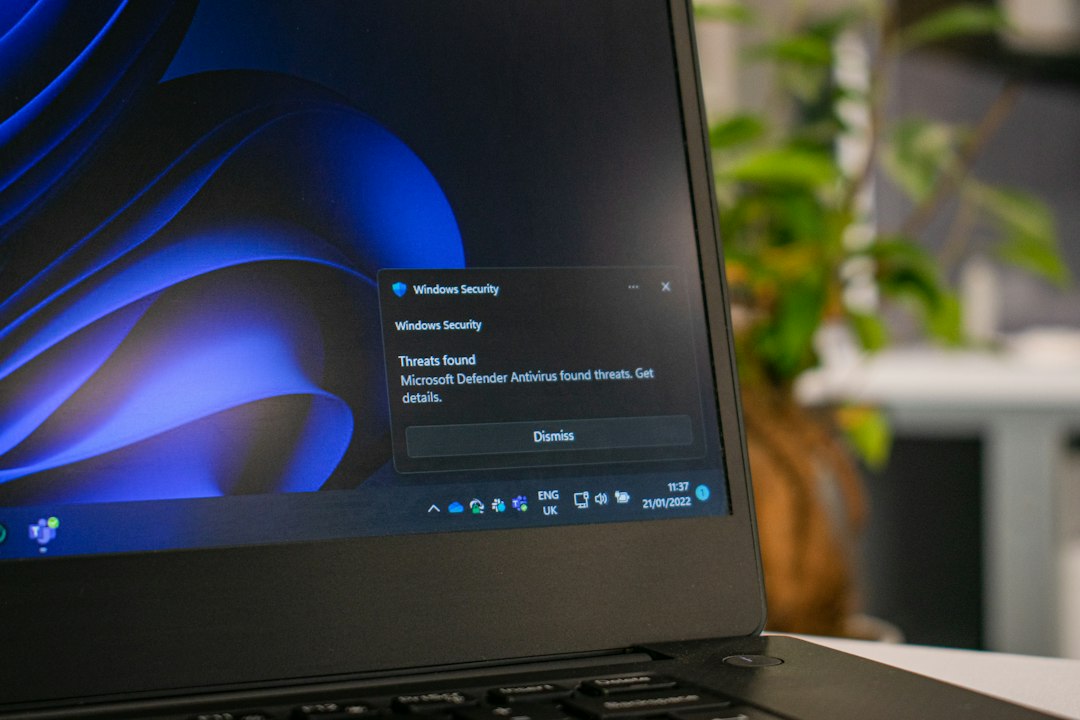
- Windows notification: Comes through the Windows notification panel.
Option 1: Turn off McAfee notifications
If you use McAfee and want to keep it, adjust its settings first. This is the least risky option. You keep protection, but reduce the noise.
Open the McAfee app and look for areas such as Settings, General Settings, Alerts, Informational Alerts, or Marketing Preferences. The exact names can change by version, but the goal is simple: turn off promotional alerts, renewal reminders where possible, and non-critical status messages.
Do not turn off warnings for malware, firewall blocks, suspicious downloads, or failed updates. Those alerts matter. The annoying ones are usually sales prompts, “performance” suggestions, and trial reminders.
Expect to waste time on this if your PC came with a trial version. Some bundled installs are loud by design. They want you to renew before the trial ends. That does not make them malware, but it can still be irritating.
Option 2: Control notifications in Windows
If the alerts arrive through Windows, you can reduce them without touching the antivirus itself.
- Open Settings.
- Go to System.
- Select Notifications.
- Find McAfee in the sender list.
- Turn off notifications, or limit banners and sounds.
This works well when McAfee is useful but too chatty. You can also keep notifications on and disable only banners, so alerts stay in the notification center without interrupting your work.
Option 3: Stop fake McAfee browser pop-ups
If the pop-up mentions McAfee but opens from Chrome, Edge, Firefox, or Safari, check browser notification permissions. A website may have tricked you into clicking Allow.
In Chrome or Edge, open browser settings and search for Notifications. Check the list of sites allowed to send notifications. Remove any site you do not recognize. Pay close attention to odd names, misspellings, coupon pages, streaming sites, and download pages.
Also clear suspicious extensions. A bad extension can inject ads and fake warnings. Remove anything you do not remember installing.
To reduce this problem later, avoid clicking Allow on random notification prompts. Most news, download, and streaming sites do not need that permission.
Option 4: Uninstall McAfee
Uninstalling McAfee makes sense if you do not use it, do not want the subscription, or already use another reputable antivirus. It also makes sense if the software came preinstalled and you never chose it.
On Windows, go to Settings, then Apps, then Installed apps. Find McAfee, choose Uninstall, and follow the prompts. Restart after removal. If standard removal fails, use McAfee’s official removal tool from its support site.
Before uninstalling, confirm you will still have protection. Windows Security can turn on automatically in many cases after third-party antivirus software is removed. Check that Virus & threat protection is active after the restart.
Option 5: Switch antivirus tools
Switch only if you have a clear reason. Do not swap tools just because of one pop-up. Good reasons include poor performance, too many ads, missing features, hard-to-cancel billing, or a messy interface.
When comparing tools, look for:
- Real-time malware protection, not just manual scanning.
- Phishing protection for unsafe links and fake login pages.
- Low performance impact during browsing and file copying.
- Clear pricing after the first year.
- Simple cancellation and no surprise renewals.
What you should do first
If you see McAfee pop-ups every day, start with the browser. Fake alerts are common and easy to fix. Then check Windows notification settings. After that, adjust McAfee itself.
If the noise continues and you do not want McAfee, uninstall it. Just make sure another trusted security tool is active before you browse, bank, or download files. The safest answer is not always “remove it.” The safest answer is: keep protection, cut the noise, and remove anything that is pretending to protect you.