AIARTY Video Enhancer is best treated as a serious repair and upscaling tool for footage that is useful but visibly flawed. It helps improve soft, noisy, compressed, or low-resolution videos by using AI models to rebuild detail, reduce artifacts, and upscale clips for modern screens. It is not magic, but it can save footage that would otherwise look dated, rough, or unprofessional.
TLDR
AIARTY Video Enhancer is designed for users who need cleaner, sharper, higher-resolution video without doing complex manual editing. For example, a 720p family recording can be upscaled to 4K, cleaned of noise, and made more watchable on a large TV. In a practical workflow, a 3-minute clip may take several minutes to process depending on GPU power, output resolution, and AI model settings. Expect the best results on clips with usable detail, not footage that is totally blurred or badly damaged.
What AIARTY Video Enhancer Does
AIARTY Video Enhancer focuses on AI video enhancement. Its main job is to improve video quality through automated analysis and reconstruction. Instead of only stretching pixels, it tries to predict missing detail and restore visual structure frame by frame.
The software is useful for several common tasks:
- Upscaling video from lower resolutions to HD, 4K, or higher output sizes.
- Denoising footage shot in low light or captured on older devices.
- Reducing blur from soft lenses, shaky capture, or poor compression.
- Restoring old clips with visible degradation, grain, or washed-out detail.
- Improving online videos that suffer from heavy compression artifacts.
That makes it relevant for creators, small studios, archivists, educators, marketers, and families restoring personal footage. The value is simple: better-looking video with less manual correction.
AI Upscaling: From Low Resolution to Modern Output
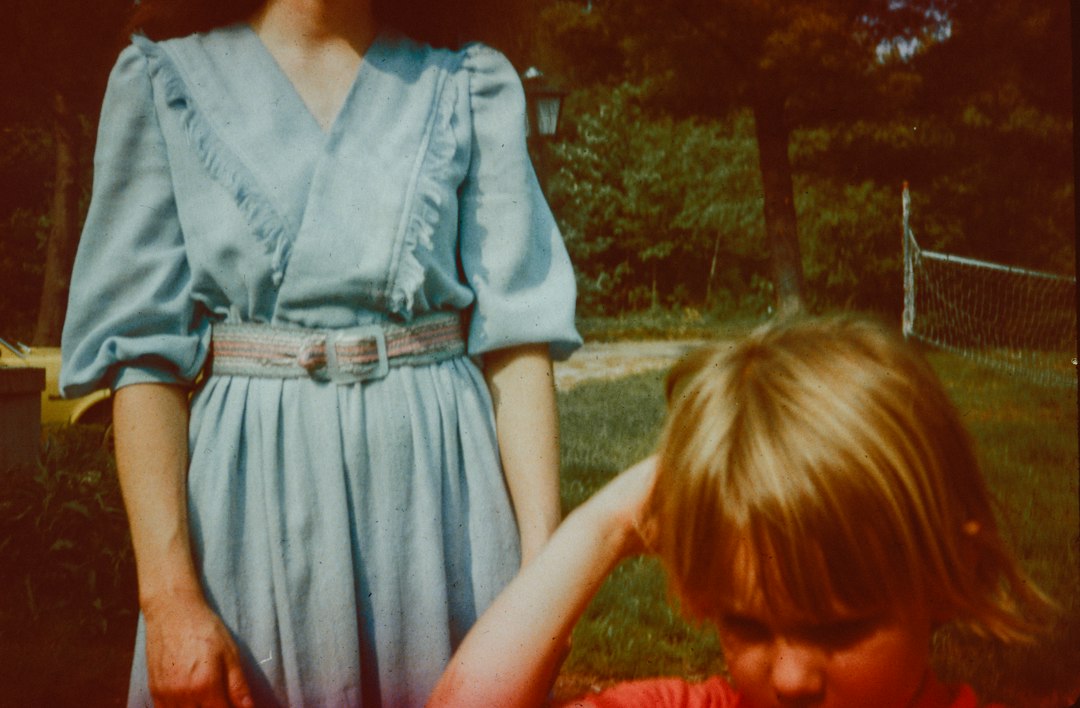
Upscaling is often the headline feature. A normal resize tool enlarges the image and fills gaps with basic interpolation. AIARTY Video Enhancer goes further by estimating texture, edges, and object detail. This can make a 480p or 720p clip look much cleaner on 1080p or 4K displays.
Good candidates for upscaling include:
- Old camcorder recordings.
- Downloaded clips with low resolution.
- Training videos made years ago.
- Archived webinars and lectures.
- Product videos that still matter but look dated.
The catch is that AI upscaling depends heavily on the source. If a face is only a few pixels wide, the software cannot recover true original detail. It can create a cleaner impression, but it may not be fully accurate. This matters for documentary, legal, or forensic work, where visual truth must be protected.
Restoration for Old, Noisy, or Compressed Footage
Restoration is where AIARTY Video Enhancer can feel most useful. Old video often has grain, color loss, low contrast, blocky compression, and soft edges. AI processing can reduce those flaws while keeping the clip recognizable.
Noise reduction is especially helpful. Footage shot indoors, at night, or on older phones often contains dancing speckles and muddy shadows. AI denoising can smooth the image while trying to preserve real detail. Poor tools make skin look plastic. Better settings keep texture while reducing distraction.
Compression cleanup also matters. Many online videos are damaged by low bitrates. You may see blocking around faces, smeared backgrounds, or stair-step edges. AI enhancement can make these clips look cleaner, though severe compression damage may still leave traces.
Deblurring and Detail Recovery
Blur is one of the hardest problems in video. It can come from motion, focus errors, camera shake, or low shutter speed. AIARTY Video Enhancer can help sharpen edges and recover perceived detail, but users should be realistic.
It works best with mild to moderate blur. Slightly soft interviews, old sports clips, product shots, and handheld travel footage can benefit. Strong motion smear is tougher. If a license plate, face, or text was never captured clearly, no enhancer can guarantee accurate recovery.
Honestly, it feels like many video tools oversell sharpening. Over-sharpened clips can show halos, crunchy edges, and fake texture. The better approach is to preview short segments first. Check faces, text, hands, hair, and background lines before processing a full video.
Improving Color, Clarity, and Watchability
Video quality is not only resolution. A clip can be 4K and still look bad. AIARTY Video Enhancer helps most when resolution improvement is paired with clarity correction, noise cleanup, and more stable detail.
For business content, this can make a real difference. A training department may have 200 older 720p lessons. Re-recording them could take weeks. Enhancing them may be more practical if the information is still correct. A cleaned-up version can improve viewer trust and reduce the “old content” feeling.
For personal users, the value is emotional. Wedding videos, childhood clips, and recordings of relatives may not be replaceable. Enhancement can make them easier to watch on current screens without changing the memory itself.
Suggested Workflow
A careful workflow gives better results than pushing every slider to the maximum. Use this process for cleaner decisions:
- Start with the best source available. Use original files if possible, not copied or re-compressed versions.
- Choose the right output size. Upscale 480p to 1080p first if 4K looks artificial.
- Preview a short section. Test 10 to 30 seconds with faces, motion, and text.
- Compare before and after. Zoom in, but also watch at normal size.
- Export with a sensible bitrate. Too low a bitrate can ruin the improved result.
Expect to waste time on previews if your footage is difficult. That is normal. A noisy night scene, a fast sports clip, and a talking-head interview may each need different settings.
Performance and Hardware Expectations
AI video enhancement is demanding. Processing speed depends on clip length, resolution, codec, selected AI model, and hardware. A modern GPU can reduce waiting time. Older systems may still work, but exports can be slow.
If you process long videos often, check three things before starting: available disk space, GPU memory, and output format. Enhanced video files can be large. A 4K export also takes more storage and more time to encode.
For professional use, batch testing is smart. Process one sample from each video type before committing to a full archive. This lowers the risk of spending hours on settings that do not fit the footage.
Best Use Cases
AIARTY Video Enhancer fits several real-world needs:
- Content creators can improve older channel videos for reuse.
- Businesses can refresh product demos, tutorials, and internal training archives.
- Families can restore personal recordings for modern TVs.
- Educators can clean up lectures and course materials.
- Archivists can prepare old footage for safer digital viewing copies.
Limits You Should Understand
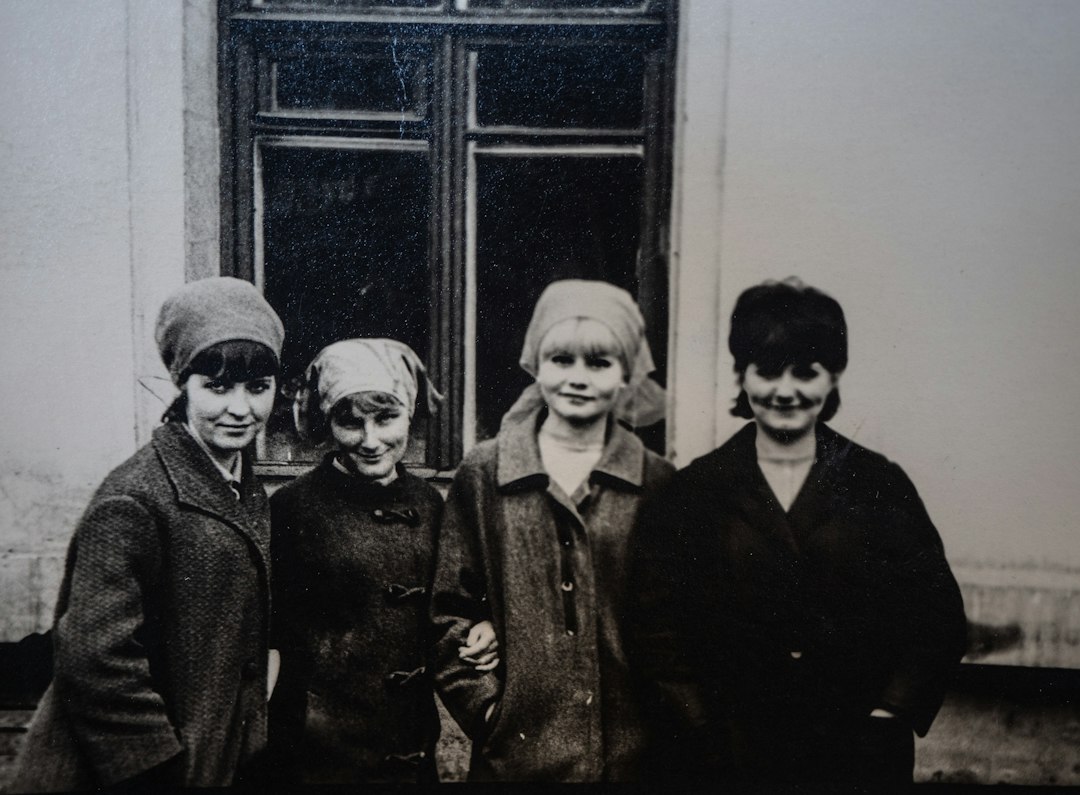
No AI enhancer can recreate perfect truth from missing data. It can infer, clean, and sharpen. It cannot know exactly what a lost detail looked like. This is why careful review matters, especially for faces, signs, documents, and historical footage.
Artifacts can also appear. Watch for waxy skin, repeated textures, flickering detail, halos, and odd edges around moving objects. If they appear, reduce enhancement strength or choose a less aggressive output size.
Final Verdict
AIARTY Video Enhancer is a practical choice for improving video quality when the source still contains enough usable information. Its strongest roles are AI upscaling, noise reduction, detail recovery, and restoration of aging or compressed footage. It is best used with short previews, realistic settings, and careful final review.
For creators and businesses, it can extend the life of existing video assets. For personal users, it can make old memories easier to enjoy. The strongest results come from balanced enhancement, not extreme settings.