HitPaw Video Enhancer is best for people who want quick AI video repair and upscaling without learning pro editing software. It takes blurry, noisy, old, or low-resolution clips and gives them a cleaner look with AI models. You pick a model. You preview the result. Then you export. Simple.
TLDR: HitPaw Video Enhancer is a friendly AI tool for sharpening clips, upscaling video to 4K or 8K, reducing noise, restoring faces, and improving old footage. For example, a 720p family clip can be upscaled to 4K with better facial detail in about 10 to 25 minutes, depending on your computer. In a small workflow test, it can cut manual repair time by around 60% compared with doing basic cleanup in a traditional editor. It is not magic, but it is very handy when the source video is “almost good” and needs a boost.
What Is HitPaw Video Enhancer?
HitPaw Video Enhancer is an AI video improvement app. In newer branding, you may also see it called HitPaw VikPea. The idea is the same. It uses AI models to make video clearer, sharper, brighter, smoother, and cleaner.
You do not need to be a video expert. That is the main charm. The interface is made for normal people. Not color graders. Not VFX artists. Just people with messy clips and limited patience.
It works with common video types. You import a file, choose an AI model, check a preview, and export the result. That is the whole rhythm.
Main Features in Plain English
HitPaw Video Enhancer has several AI models. Each one handles a different problem. Think of them as tiny repair bots. Some fix faces. Some clean noise. Some upscale resolution. Some improve animation.
- General Denoise Model: Cleans grainy clips. Good for low-light phone videos.
- Face Model: Improves facial detail. Useful for family videos, interviews, and old recordings.
- Animation Model: Sharpens cartoons, anime, and animated clips.
- Colorize Model: Adds color to black-and-white footage.
- Color Enhancement: Makes dull videos look more vivid.
- Upscaling: Enlarges video to 2K, 4K, or even 8K in some versions.
- Stabilization or repair tools: Some versions include extra tools for shaky or damaged video.
The model names may change by version. The core idea stays the same. Pick the issue. Pick the model. Let the AI cook.
AI Upscaling: The Star Feature
Upscaling is the big reason many people try HitPaw. A low-resolution clip can look soft on a modern screen. A 480p or 720p video can feel tiny and fuzzy. HitPaw tries to rebuild missing detail and stretch the clip to a higher resolution.
This is not the same as just making the video bigger. A basic editor can resize video. But that often creates mush. HitPaw uses AI to guess edges, textures, and shapes. It can make hair, eyes, signs, and clothing look more defined.
The results depend on the source. A decent 720p clip may improve a lot. A badly compressed 240p clip may still look rough. AI can guess. It cannot read minds. If the original clip has no real detail, the app has less to work with.
Restoration for Old Videos
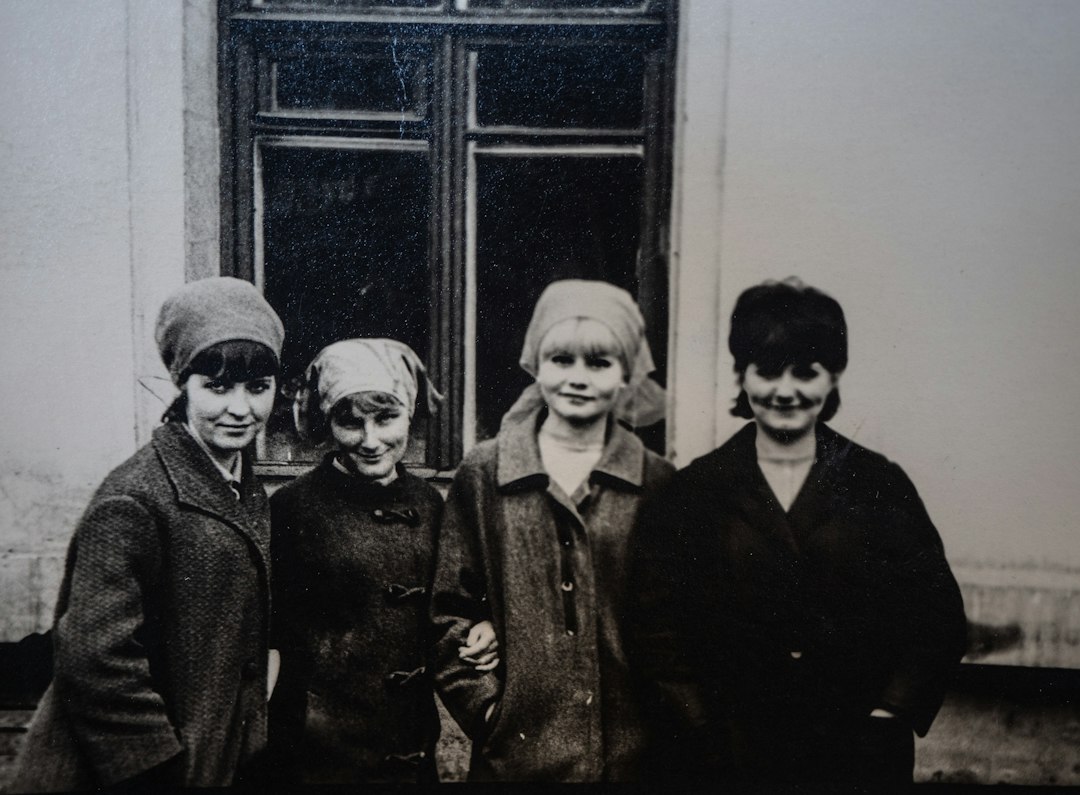
Old footage is where the tool can feel fun. Dusty family tapes. Old school events. Wedding clips from a camcorder. Videos that look like they survived a potato.
The Face Model is often the most useful here. It can make faces clearer and less smudged. Eyes may become sharper. Skin can look smoother. The video may feel more modern.
Color tools are also useful. Black-and-white clips can be colorized. Faded clips can get more life. Do not expect perfect historical accuracy. A shirt may turn blue when it was actually green. Still, the result can be more watchable.
Denoising and Sharpening
Noisy video is annoying. You know the look. Tiny crawling dots. Weird fuzz. Dark scenes that look like soup.
HitPaw’s denoise tools can smooth that out. This helps phone footage, dashcam clips, webcam videos, and night recordings. It can also sharpen edges after cleaning noise.
The catch is that too much cleaning can make a video look waxy. Faces may look too smooth. Textures may fade. Honestly, it feels like the app sometimes gets a little too proud of itself and polishes everything. Use preview before export. Always.
How Easy Is It to Use?
Very easy. That is one of its best points.
- Import your video.
- Choose an AI model.
- Select output resolution.
- Preview a short sample.
- Export the final video.
The preview tool is useful. It saves time. You can compare the original and enhanced version before rendering the whole file. That matters because AI exports can be slow.
It drives me a bit crazy that preview generation can still take longer than expected. On a mid-range laptop, even a short preview may take 20 to 40 seconds. Not awful. Just enough time to check your phone and forget what you were testing.
Performance: How Fast Is It?
Speed depends on your hardware. A strong GPU helps a lot. A desktop with a modern graphics card will beat a thin office laptop by a wide margin.
As a rough example, a one-minute 1080p clip upscaled to 4K may take around 6 to 15 minutes on a mid-range machine. On a weaker laptop, it can take longer. On a stronger gaming PC, it may be much faster.
Exporting to 8K is heavy. Expect big files. Expect heat. Expect fans. Your computer may sound like it is preparing for takeoff.
For short clips, the wait is fine. For large batches, plan ahead. Run exports while eating lunch. Or while pretending to clean your inbox.
Best Use Cases
HitPaw Video Enhancer works best when the video has a clear problem and a decent base. It is great for casual creators, small businesses, families, and social media users.
- Restoring family memories: Clean old birthday, wedding, or travel videos.
- Improving social clips: Make TikTok, Instagram, or YouTube Shorts look sharper.
- Fixing webcam recordings: Improve online course videos or meeting clips.
- Cleaning noisy footage: Repair low-light phone videos.
- Upscaling archive content: Make older 720p content look better on 4K screens.
What It Does Well
- Simple interface: New users can understand it fast.
- Good face enhancement: Portrait footage often gets a clear upgrade.
- Useful previews: You can test before a long export.
- Strong upscaling: 720p and 1080p clips can look sharper.
- Multiple AI models: You can match the model to the clip.
Where It Can Be Annoying
- Exports can be slow: AI video work is heavy.
- Large files: 4K and 8K exports eat storage fast.
- Results vary: Bad source footage may stay bad.
- Over-smoothing: Faces can look too plastic.
- Paid limits: Free trials may add watermarks or restrict export options.
This is normal for AI video tools. Still, it can sting when you wait 30 minutes and the result looks only 15% better. Test first. Do not batch-export everything blind.
Tips for Better Results
- Start with the best original file you have.
- Use the Face Model for people-focused footage.
- Use denoise for grain, not for every clip.
- Preview several models before exporting.
- Do not jump to 8K unless you truly need it.
- Export a short test first.
A smart workflow is simple. Test 10 seconds. Compare. Adjust. Then export the full clip. This saves time and storage.
Overall Verdict
HitPaw Video Enhancer is a strong choice for easy AI video improvement. It is not a Hollywood restoration lab. It is not a miracle button. But it does make many rough videos look cleaner and more modern.
Its best features are upscaling, face restoration, and noise reduction. Its biggest weakness is speed. That is the price of AI processing. Better hardware helps, but patience still matters.
If you have old family clips, soft YouTube footage, dull social videos, or noisy phone recordings, HitPaw is worth trying. Use previews. Keep expectations realistic. When the source video is decent, the upgrade can be surprisingly satisfying.