The safest way to alter a scanned PDF is to work on a copy, use OCR only when needed, keep an audit trail, and export a clean final version without damaging the original record. A scanned PDF is usually an image of a document, not editable text. That means edits must be handled carefully, especially if the file contains contracts, invoices, medical forms, tax records, signed statements, or personal data.
TLDR: First, duplicate the scanned PDF and store the untouched original in a secure folder. Then use a trusted PDF editor with OCR to make authorized text corrections, redactions, page replacements, or annotations. For example, a small office processing 120 scanned invoices per month may save 30% of correction time by using OCR templates, but only if each edited file is checked against the original scan before sending. Never alter a document to misrepresent facts, hide required information, or forge approvals.
Start With a Safe Working Copy
Before opening any editing tool, create a copy of the scanned PDF. Name it clearly, such as Client Agreement scanned original.pdf and Client Agreement working edit.pdf. Store the original in a read-only folder if possible.
This step sounds basic, but it prevents a lot of pain. Scanned PDFs can degrade during repeated exports. Compression may blur text. OCR may misread names, numbers, and dates. If something goes wrong, the original file is your proof and fallback.
- Keep the original unchanged.
- Work only on a duplicate.
- Use version names with dates.
- Record who made each change and why.
Confirm You Are Allowed to Edit It
Not every PDF should be altered. If the file is a government form, evidence file, signed contract, notarized document, medical record, or financial statement, edits may have legal or compliance limits. In many cases, corrections should be made using annotations, addendums, or replacement pages instead of direct changes.
Ask a simple question: Am I correcting the document, or am I changing its meaning? Fixing a typo in your own brochure is one thing. Changing a signed payment amount is something else entirely.
For official records, use visible correction methods when possible. Add a note, stamp, dated comment, or attached correction sheet. This keeps the file honest and easier to verify later.
Understand What a Scanned PDF Really Is
A normal digital PDF may contain selectable text, fonts, links, and embedded structure. A scanned PDF often contains only images of pages. You can zoom in and read it, but the computer may not “understand” the words until OCR is applied.
OCR, or optical character recognition, converts the image of text into machine-readable text. It can help you search, copy, and edit content. It is not perfect. Honestly, it feels absurd that a clean one-page scan can still turn “O” into “0” or “rn” into “m.” Expect to proofread every critical line.
OCR accuracy depends on scan quality. Crooked pages, low contrast, handwriting, stamps, folds, and faint ink all reduce accuracy. If the document is blurry, consider rescanning it at 300 DPI or higher before editing.
Choose the Right Type of Edit
There are several safe ways to alter a scanned PDF. The right method depends on the goal.
- Redaction: Permanently removes sensitive information, such as Social Security numbers, bank details, or medical data.
- Annotation: Adds comments, highlights, stamps, or notes without changing the original page image.
- Text replacement: Uses OCR and editing tools to replace visible text. This requires careful review.
- Page replacement: Swaps an incorrect scanned page with a corrected page.
- Form filling: Adds typed answers over blank fields on a scanned form.
- Image cleanup: Straightens pages, improves contrast, removes blank pages, or crops margins.
For legal or regulated documents, annotations and page replacements are often safer than silent text edits. They show what changed and reduce suspicion.
Use OCR Carefully, Then Verify Line by Line
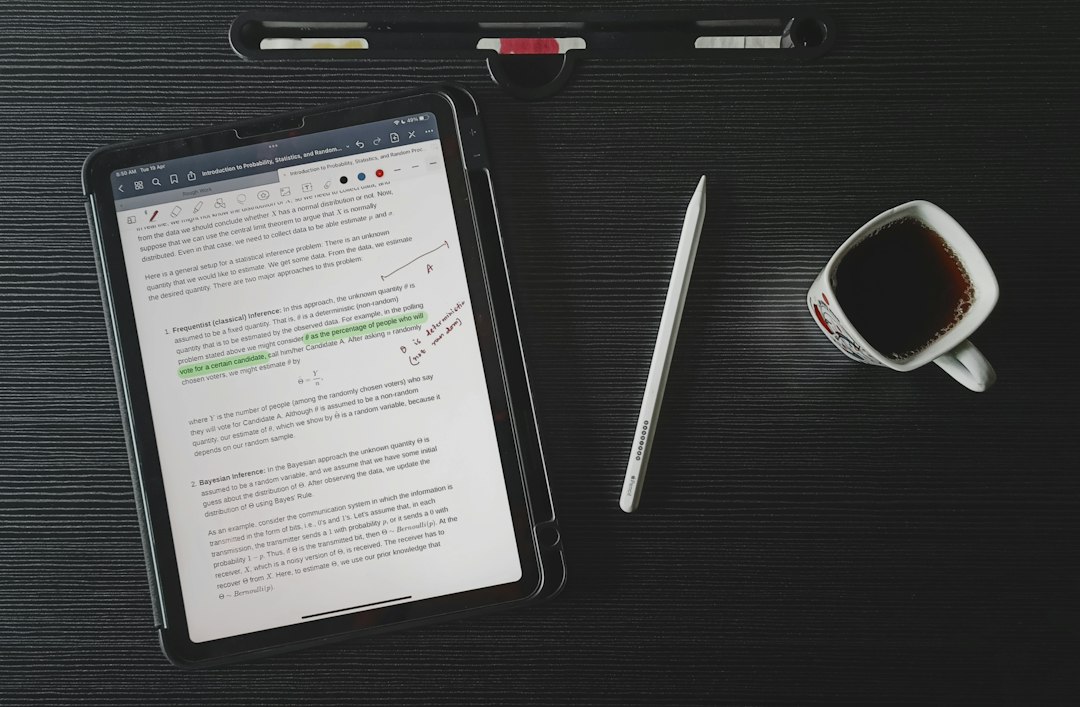
If you need editable text, run OCR in a reputable PDF editor. Choose the correct language before processing. If the document contains tables, check whether the tool supports table recognition. Many tools struggle with columns, checkboxes, and rotated text.
After OCR, compare the editable text against the scan. Pay special attention to:
- Names and initials
- Dates and deadlines
- Currency amounts
- Account numbers
- Addresses
- Legal clauses
- Checkboxes and signatures
Do not trust OCR blindly. A single wrong digit can change an invoice, insurance claim, or tax record. If the PDF affects money, identity, property, employment, or legal rights, have a second person review it.
Redact Sensitive Data the Right Way
Covering text with a black rectangle is not real redaction. Someone may remove the shape and reveal the text below. Safe redaction permanently removes the content from the PDF layer and the underlying image or text.
Use a redaction tool that applies permanent removal. Then run a search for the redacted terms. Try copying text from the redacted area. Check document metadata as well. Names, software history, comments, and hidden OCR text can remain in the file if not cleaned.
After redaction, save a separate redacted copy. Keep the unredacted original only in a secure location with restricted access.
Fix Pages Without Rebuilding the Whole File
Sometimes the safest edit is not text editing at all. If one page is wrong, replace that page. If a signature page was scanned upside down, rotate it. If page 4 is missing, insert a rescanned page in the correct spot.
This approach keeps the document more stable. It also avoids the messy problem of matching fonts in a scanned image. That tiny mismatch can make a file look suspicious, even when the edit is allowed.
When replacing pages, keep consistent scan settings. Use similar resolution, color mode, margins, and page size. A replacement page that looks too sharp or too dark may raise questions.
Protect File Quality During Export
Scanned PDFs can become huge, grainy, or distorted after editing. Use balanced export settings. For records, 300 DPI is usually a good baseline. Use grayscale for text-heavy documents unless color is needed for stamps, marks, charts, or signatures.
Avoid repeated print-to-PDF cycles. They can flatten useful data and make future review harder. Save from the editor when possible. If you must reduce file size, test readability before sharing.
Open the exported file on another device before sending it. Check page order, search function, redactions, signatures, bookmarks, and file size. It drives people mad when a corrected PDF looks fine on one screen but arrives rotated, flattened, or missing comments.
Keep an Audit Trail
A serious edit should leave a clear record. Keep a brief change log next to the file or inside your document system. List the file name, editor, date, person responsible, and reason for the change.
- Example: “2026 02 14, corrected OCR typo in client address, verified against paper scan.”
- Example: “2026 02 15, redacted bank account number before external sharing.”
- Example: “2026 02 16, replaced blank page 3 with rescanned original.”
This does not need to be complicated. A simple log can protect your team if questions come later.
Final Safety Checklist
- Confirm you have permission to edit the document.
- Preserve the original scanned PDF.
- Use trusted software with proper OCR and redaction tools.
- Proofread all OCR output against the scan.
- Use real redaction, not visual cover-ups.
- Keep version names clear.
- Remove hidden metadata if sharing externally.
- Export once, review carefully, and store securely.
Altering a scanned PDF safely is not about making invisible changes. It is about making authorized corrections while preserving trust. Treat the file like a record, not just an image. If accuracy, privacy, and traceability stay intact, you can edit scanned documents without creating new risks.