The safest way to unlock a PDF for editing is to use the document’s permissions password or return to the original source file. If you do not own the file or lack clear permission, do not try to bypass its restrictions. PDF permissions often exist to protect contracts, reports, forms, or licensed material. Treat them like a locked office cabinet, not a software glitch.
TLDR: If a PDF blocks editing, first check whether it is protected by an open password, an owner permissions password, a certificate, or a digital signature. If you have authorization, tools such as Adobe Acrobat, PDF-XChange Editor, Foxit PDF Editor, or your organization’s document system can remove restrictions after you enter the correct password. For example, a legal team handling 120 vendor contracts found that 38% were locked only because old export settings had disabled editing. If you do not have the password, request an unlocked copy or recreate the document from the approved source.
Understand what kind of lock you are dealing with
Not every locked PDF is locked in the same way. That matters because the correct fix depends on the type of protection applied.
- Open password: You cannot view the PDF without entering a password.
- Permissions password: You can view the PDF, but editing, copying, printing, commenting, or page extraction may be blocked.
- Digital signature: The document may open normally, but editing can invalidate the signature.
- Certificate security: Access depends on a user identity or certificate, often used in companies and government workflows.
- Flattened or scanned PDF: The file is not truly editable because it is made from images, not text layers.
The catch is that many apps give vague error messages. You may see “This operation is not permitted” without being told whether the issue is password security, a signature, or a scanned page. Expect to waste time on this unless you inspect the document properties first.

Check the document properties first
Before trying any fix, open the PDF in a professional PDF editor and inspect its security settings. In Adobe Acrobat, use File > Properties > Security. Other PDF editors have similar panels named Document Properties, Security, or Permissions.
Look for these fields:
- Security Method: Shows whether password security, certificate security, or no security is applied.
- Document Restrictions Summary: Shows whether editing, printing, copying, page extraction, and commenting are allowed.
- Signing status: Shows whether a signature has locked the document after signing.
If editing is listed as Not Allowed, the PDF is restricted. If all permissions are allowed but you still cannot edit, the issue may be technical. The PDF may be image-based, corrupted, created from a scan, or built from unusual fonts and layout objects.
If you have the permissions password
If you are the document owner, or the owner gave you the permissions password, unlocking is usually simple. Use a trusted desktop PDF editor rather than a random upload site, especially for payroll records, contracts, tax forms, medical files, or legal drafts.
- Open the PDF in a full PDF editor.
- Go to Properties or Protect.
- Choose the option to change or remove security.
- Enter the permissions password when prompted.
- Set editing, copying, and printing permissions as needed.
- Save the file under a new name, such as contract editable approved.pdf.
Keep the original locked version. This helps if you need to prove what changed later. It also protects you from overwriting an official copy by mistake.
If the PDF is signed
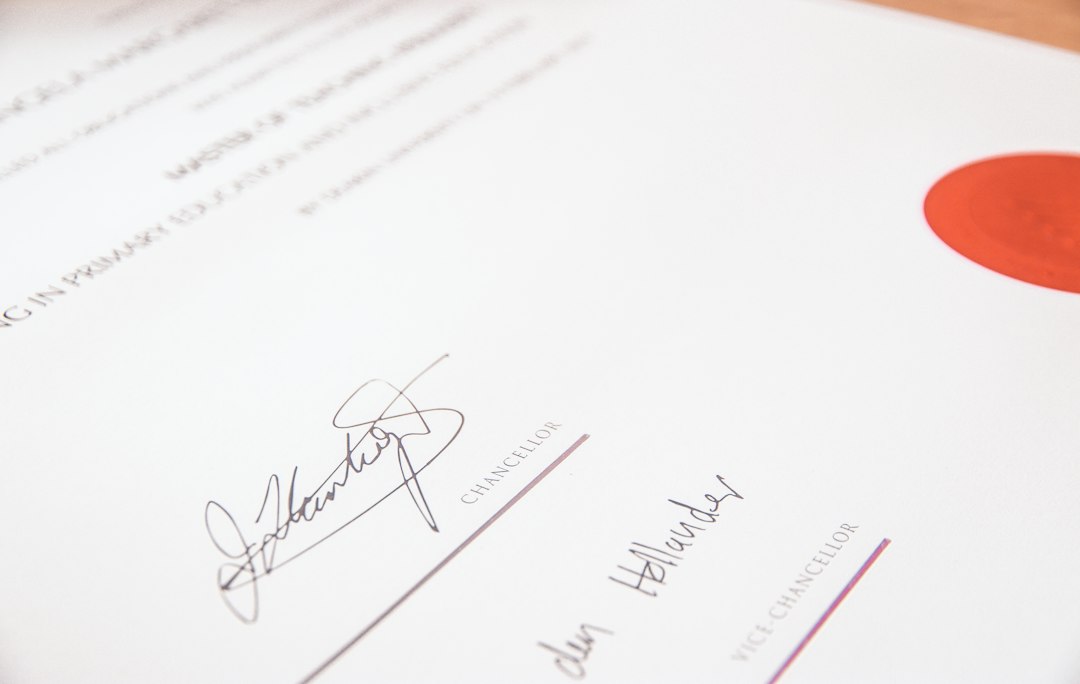
A signed PDF is different from a password-protected PDF. The signature may certify who signed it and whether the content changed after signing. Editing the file can break that proof.
If you need to edit a signed PDF, ask yourself why. If the signed file is a final contract, policy, invoice, or approval record, editing may be inappropriate. The better process is usually to create a revised version, send it for review, and collect a new signature.
Use this approach:
- For minor notes: Add comments only if comments are allowed.
- For corrections: Return to the source file, edit it, then generate a new PDF.
- For legal changes: create an amendment or replacement version.
- For forms: request a fillable copy from the issuer.
If you do not have the password
If you lack the password, the clean route is to ask the document owner for access. This may feel slow, but it prevents legal and audit problems. A short message often works better than a vague request.
Example request:
Hello, I need to update section 4.2 of the attached PDF for the approved March revision. Could you please send the editable source file or an unlocked PDF with editing enabled? I will return the revised copy for review before use.
If the owner is unavailable, check whether your company has the source file. Many PDFs start as Word documents, InDesign files, spreadsheets, CAD exports, or form templates. Editing the source is usually cleaner than editing the PDF. It preserves spacing, fonts, headings, tables, and accessibility tags.
When OCR is the right answer
Sometimes the problem is not security at all. The PDF may be a scan. In that case, the page is basically a picture. You can select nothing, or the text selection jumps around in strange blocks. It drives me crazy when software says “editable PDF” and then gives you a page full of image fragments.
Use OCR, or optical character recognition, when you have a legitimate copy but no text layer. OCR software reads the image and creates selectable text. After OCR, you can search the document, copy text, and sometimes edit it.
Be realistic. OCR is not magic. Accuracy depends on scan quality, font clarity, rotation, stains, handwriting, and language. A clean 300 DPI typed page may convert with high accuracy. A tilted photocopy with stamps and small print may need manual cleanup.
Be careful with online PDF unlockers
Online services that claim to unlock PDFs can be risky. Some are legitimate, but others may store your file, scan its contents, or use unclear processing rules. Never upload sensitive documents unless your organization approves the service and the privacy terms are clear.
Avoid online unlockers for:
- Employment records
- Medical information
- Bank statements
- Tax documents
- Contracts under negotiation
- Confidential product plans
- Government or court records
For sensitive files, use an approved desktop tool or internal document platform. If your company has an IT or records team, ask them before uploading anything.

Common fixes that do not break rules
There are several practical ways to keep work moving without improper access.
- Ask for the source file. This is the best option for brochures, policies, manuals, and reports.
- Request a new export. The owner can export the PDF again with editing or commenting allowed.
- Use a form version. If you only need to type into fields, ask for a fillable PDF.
- Create a revision copy. Mark changes in a separate document and send it for approval.
- Use OCR on your own scanned copy. This helps when the file is image-based and not restricted by rights you lack.
- Convert from the original format. If the PDF came from Word or Excel, edit there and export again.
When printing to PDF is not a good workaround
Some people try to print a protected PDF to a new PDF. This can strip metadata, bookmarks, tags, form fields, accessibility structure, and sometimes quality. It may also conflict with the document owner’s restrictions. Do not use this method to defeat permissions you were not granted.
Even when printing is allowed, the result is often worse. Links may break. Text may become less editable. File size can grow. Screen readers may lose structure. For professional documents, this is rarely a clean fix.
Build a safer workflow for future PDFs
If your team often fights locked PDFs, fix the process upstream. Keep source files in a shared repository. Name final and editable versions clearly. Record who can change permissions. Use version numbers. Store passwords in an approved password manager, not in email threads or sticky notes.
A sound naming pattern helps:
- policy remote work v3 source.docx
- policy remote work v3 review.pdf
- policy remote work v3 signed final.pdf
This small habit prevents confusion. It also reduces the chance that someone edits a final signed copy when they should edit a draft.
Final guidance
Unlock a PDF only when you have the right to do so. If you have the permissions password, remove or adjust security in a trusted PDF editor and save a new copy. If you do not have it, request access, find the source file, or create an approved revision workflow. A locked PDF is often annoying, but the safest fix is usually the one that preserves ownership, audit trails, and document integrity.